Return to Warehouse
Step 1: Process Initiation
To transfer items from employee custody back to the warehouse, follow the steps below:
1️⃣ From GRS:
- Navigate to
GRS➡️My GRS Request. - Click the
Returnbutton, specify the return quantities, and clickSubmit. 
2️⃣ From Custody:
- Navigate to
GRS➡️My Custody. - Select the products to be returned.
- Click the
Returnbutton, specify the return quantities, and clickSubmit. 
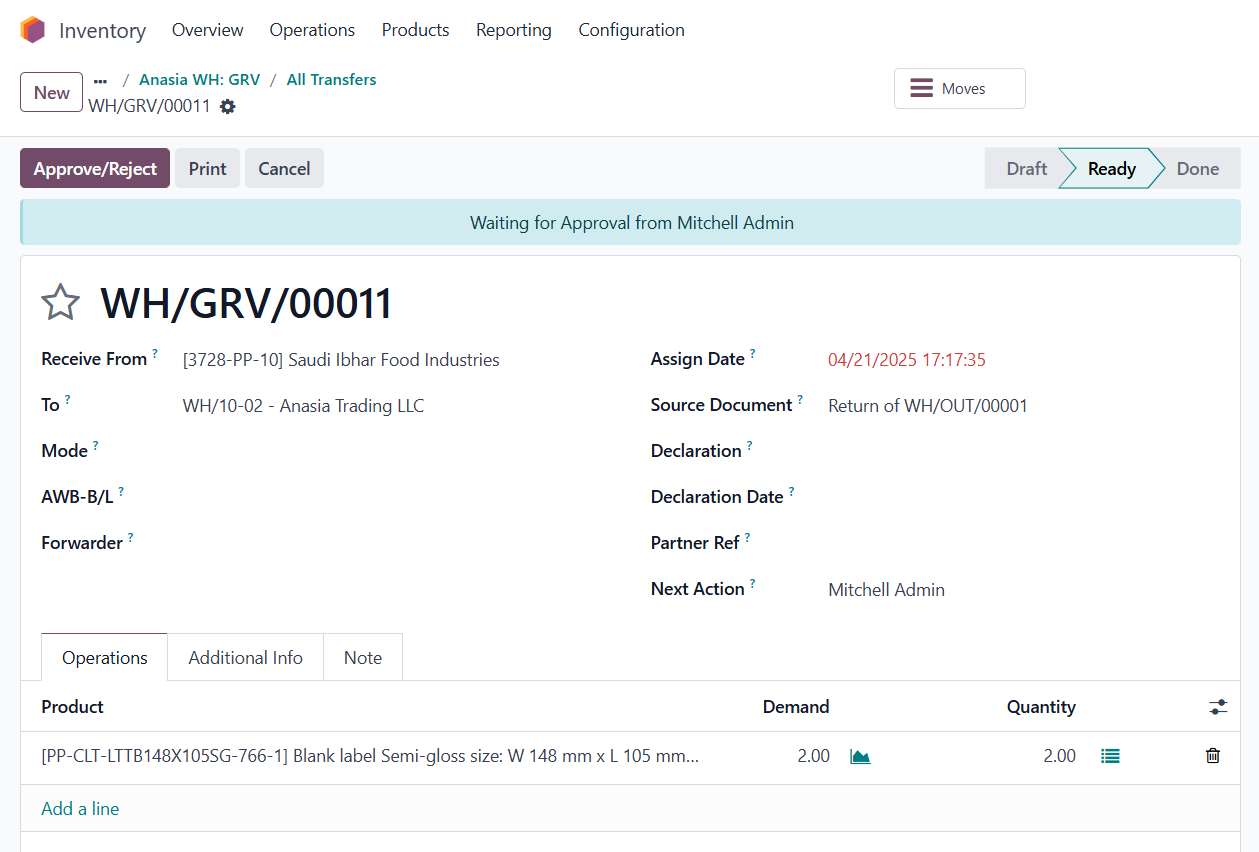
Step 2: Awaiting Logistics Department Approval
The return request remains in a pending state while awaiting approval from the Logistics Department.
Step 3: Physical Receipt (GRV)
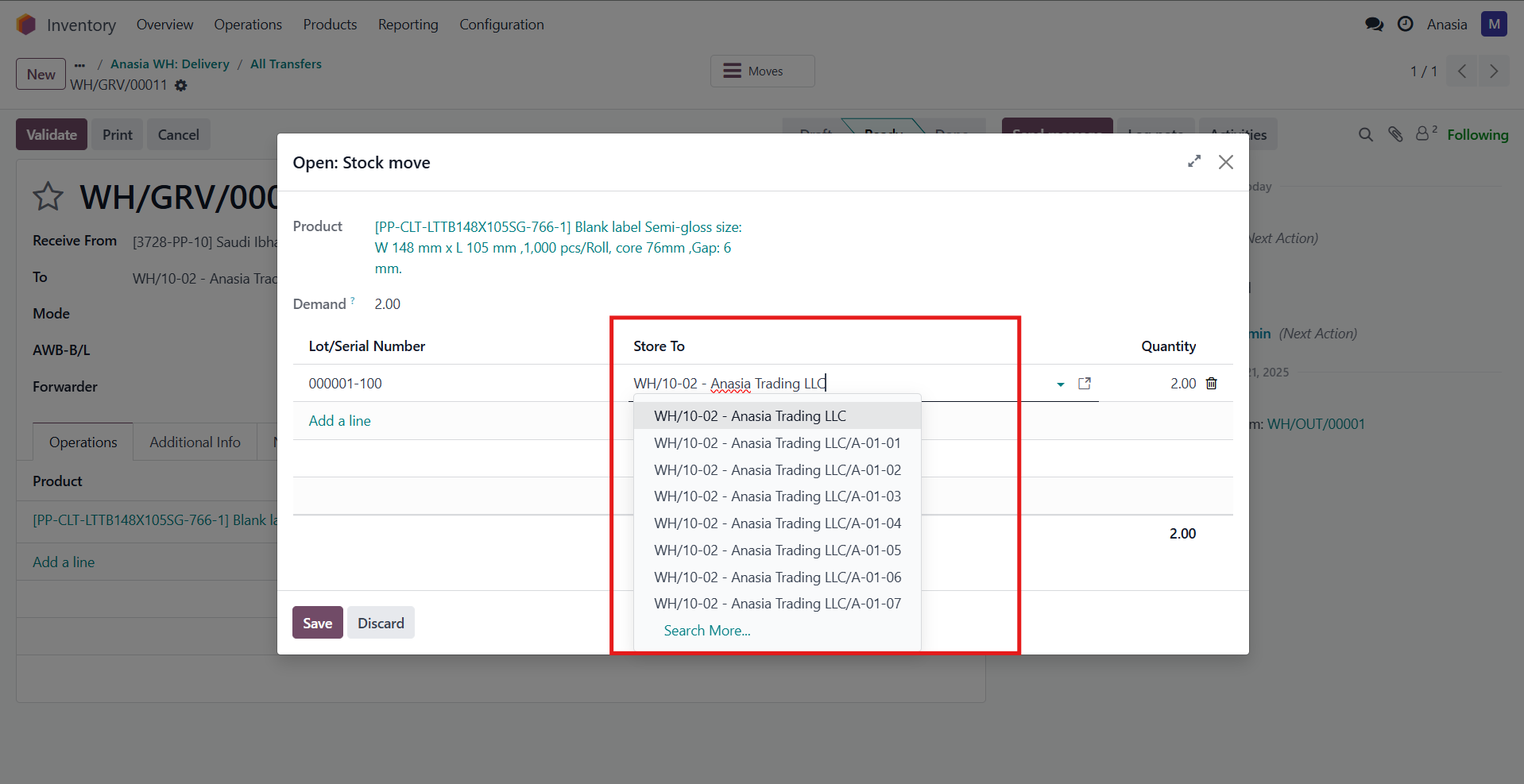
The Warehouse Team receives the returned items and places them in the appropriate pallet.
Step 4: Process Completion
- Inventory records are automatically updated by the system.
- Upon successful transfer, a Transfer Entry (GRS Note) is generated in Microsoft Dynamics GP – On Discussion