Physical Inventory
This guide provides step-by-step instructions for conducting physical inventory counts through both the mobile application and backend system.
Inventory Count via Barcode App
The Barcode application allows warehouse staff to efficiently perform physical inventory counts by scanning locations and products.
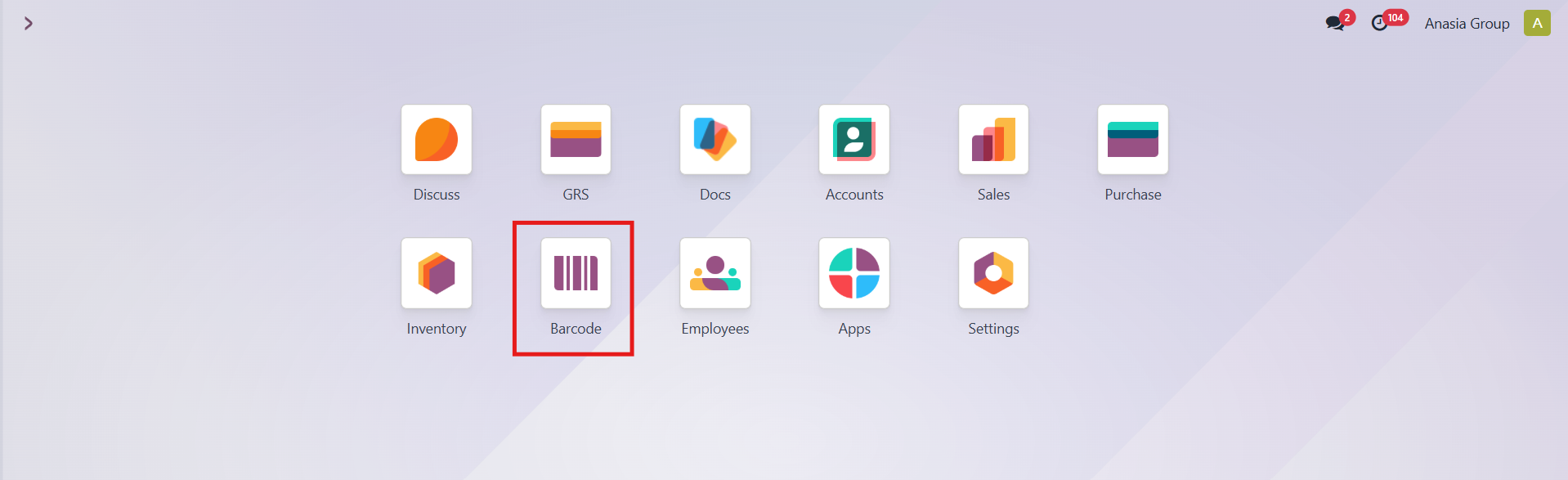
Follow these steps to properly conduct physical inventory from the Barcode App:
Step 1: Access the Inventory Count Module
Click on the Inventory Count option from the main menu.
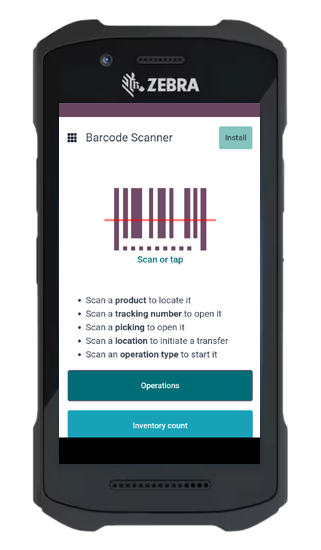
Step 2: Scan Pallet/Bin Barcode
Scan the location barcode to specify where you are counting inventory.

Step 3: Process Each Product
For each product at the location:
- Scan the corresponding Lot/Serial number for tracked products
- Scan the product barcode for non Lot/Serial number products

Step 4: Complete the Count
Once all items have been counted, tap the Apply button to submit the inventory count.

Inventory Management via Backend
The Warehouse Team can update the current stock on hand using the following navigation paths:
Method 1: Via Adjustments Menu
Navigate through:
Inventory → Operations → Adjustments → Physical Inventory

Method 2: Via Product Details
Navigate through:
Inventory → Products → Select the desired product → Update Quantity

Updating Inventory Quantities
Fill in the required information as shown below:

- Location: Enter the pallet code
- Product: Specify the product to be updated
- Lot/Serial Number: Provide the Lot or Serial Number as per product tracking requirements
- On Hand Quantity: Enter the actual quantity available at the specified location (pallet)
- Click Save to finalize and update the inventory
Important Notes
- Always verify scanned locations and products before submitting counts
- The system will automatically create adjustment entries based on the difference between counted and system quantities
- Physical inventory counts should be performed regularly to maintain accurate stock levels