GRV on Mobile Device
This guide provides step-by-step instructions for processing Goods Received Vouchers (GRV) through the mobile application.
Overview
The Barcode application allows warehouse staff to efficiently process incoming deliveries by scanning barcodes and validating received items against purchase orders.
GRV Processing Workflow
Follow these steps to properly receive and register incoming goods:
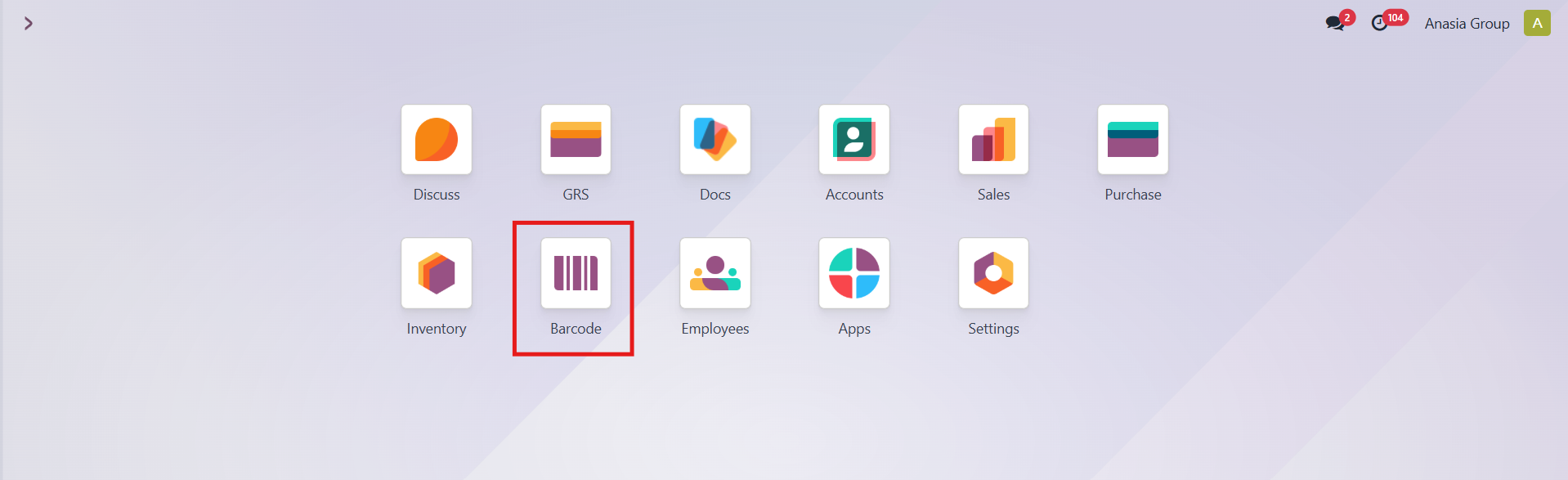
Step 1: Access the GRV Module
Begin by navigating to the GRV section from the mobile application home screen.
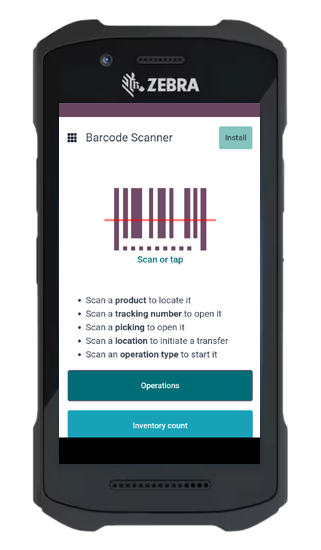
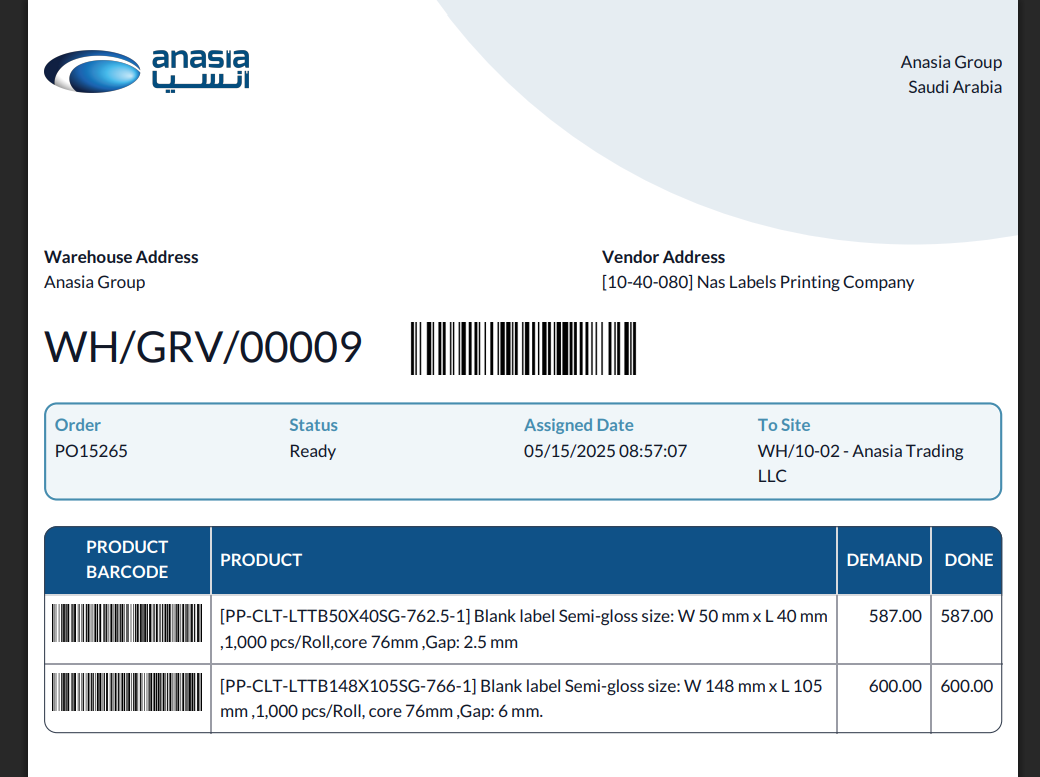
Step 2: Scan GRV Document
Scan the GRV Note barcode using your mobile device to retrieve the expected delivery details.

Step 3: Process Each Product
For each product in the delivery:
- Scan the product barcode
- Scan the corresponding Lot/Serial number

Step 4: Assign Storage Location
Scan the destination Pallet/Bin barcode where the product will be stored.

Step 5: Complete All Items
Repeat Steps 3-4 for all products included in the current GRV.
Step 6: Validate Receipt
Once all items have been processed, tap the Validate button to complete the GRV process.

Step 7: Handle Incomplete Deliveries
If not all expected items were received, the system will prompt for confirmation and display a summary of received items.

You can either:
- Click Validate to confirm the partial receipt
- Click Stay on transfer to return and process additional items
Step 8: Completion
After validation, the system will: - Return to the main scanning menu - Automatically create a backorder for any non-received items

Important Notes
- The system automatically tracks discrepancies between expected and actual received quantities
- Backorders are generated without requiring manual intervention
- Each product must be associated with a specific storage location for proper inventory management